 Fenestration
 Local Builders
 Builders' Merchants
 Architects & Specifiers
 House Builders
 Main Contractors
 Lead Generation
 Direct Marketing
 Marketing Reports
 Salestracker CRM
 STEM Email Marketing
 Mobile CRM
 Software Features
 Market Overview
 FAQs
FAQs Downloads
 GDPR
GDPR Our History
 Company News
 Careers
 Book a Demo
 Contact Us
Logging In To Salestracker Mobile
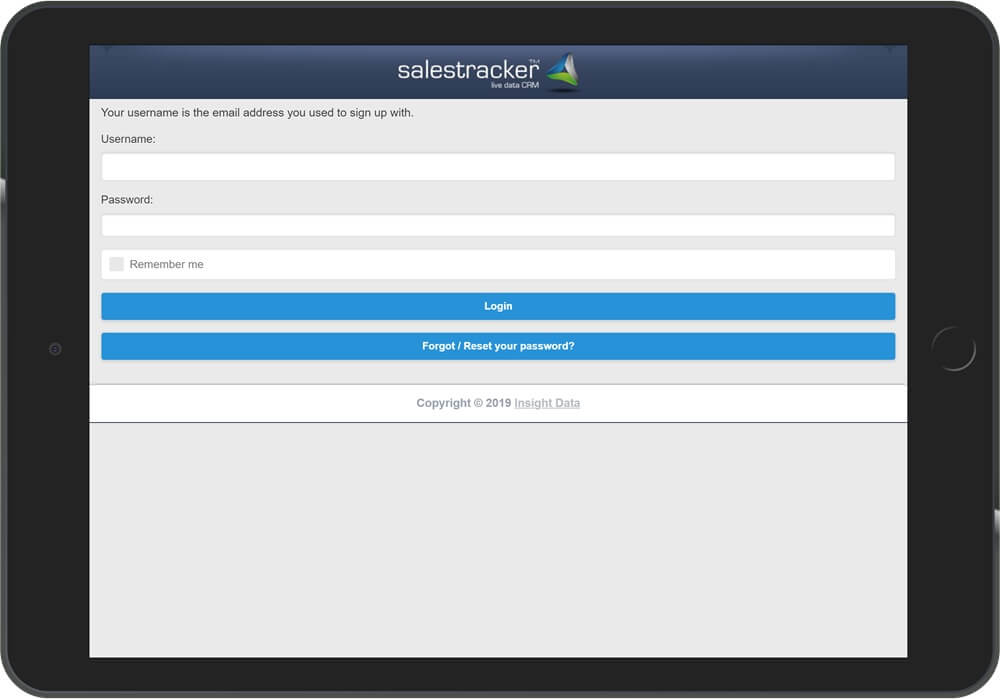
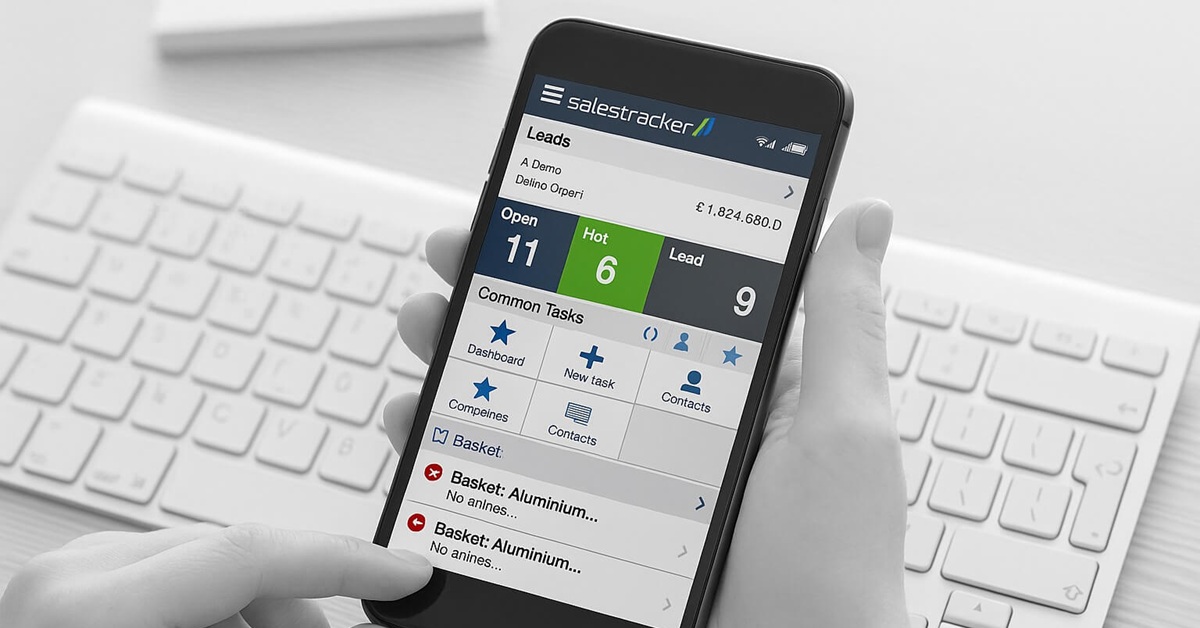
Salestracker Mobile gives you fast, secure access to your CRM system on smartphones and tablets. This updated guide shows you how to log in, what to expect from the mobile view, and how to switch to the desktop version if needed.
How Salestracker Mobile Works
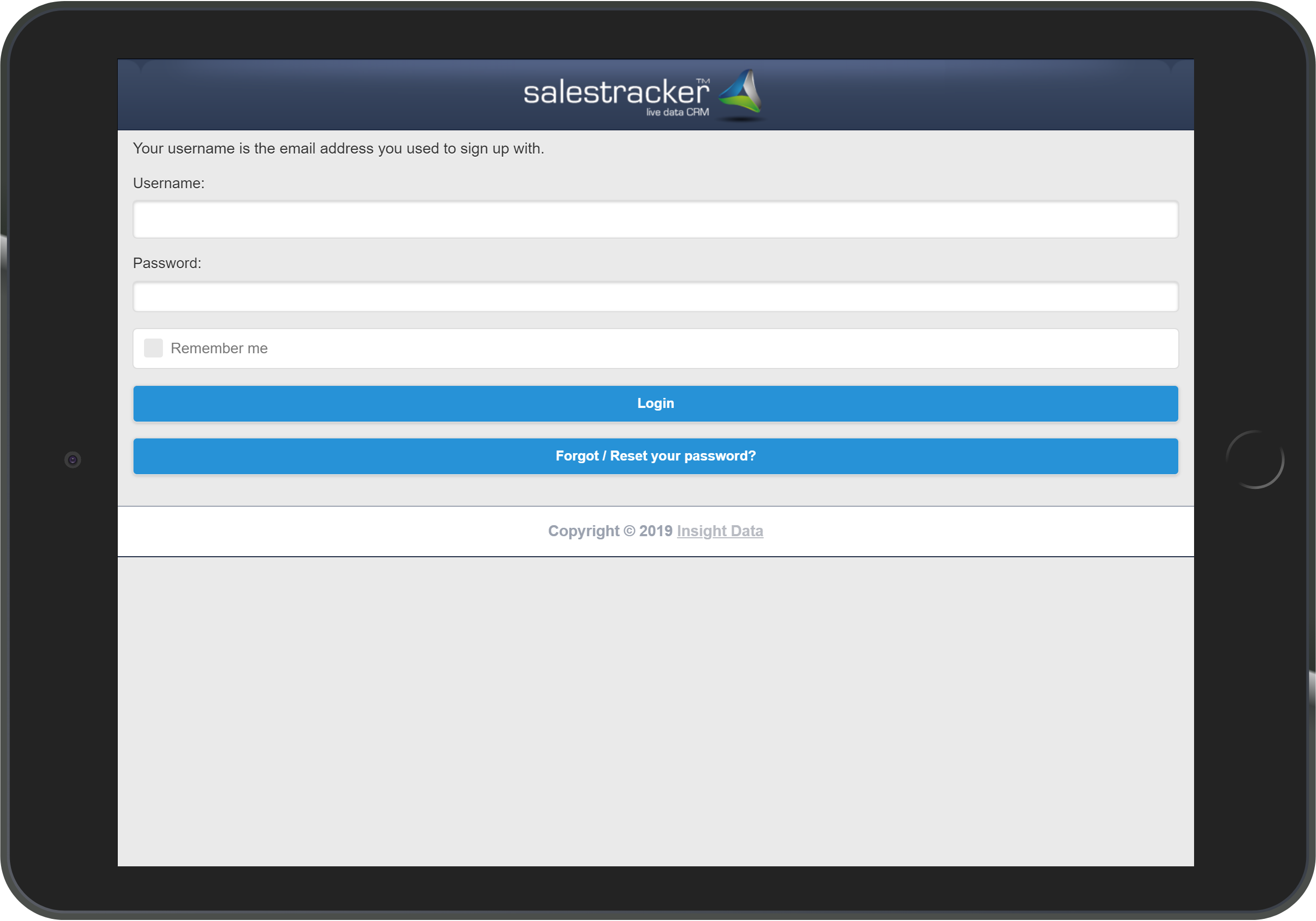
When you load Salestracker on your device, the platform automatically detects whether you’re using a desktop, laptop, phone or tablet. If you’re on a mobile device, it will display a mobile-optimised login screen.
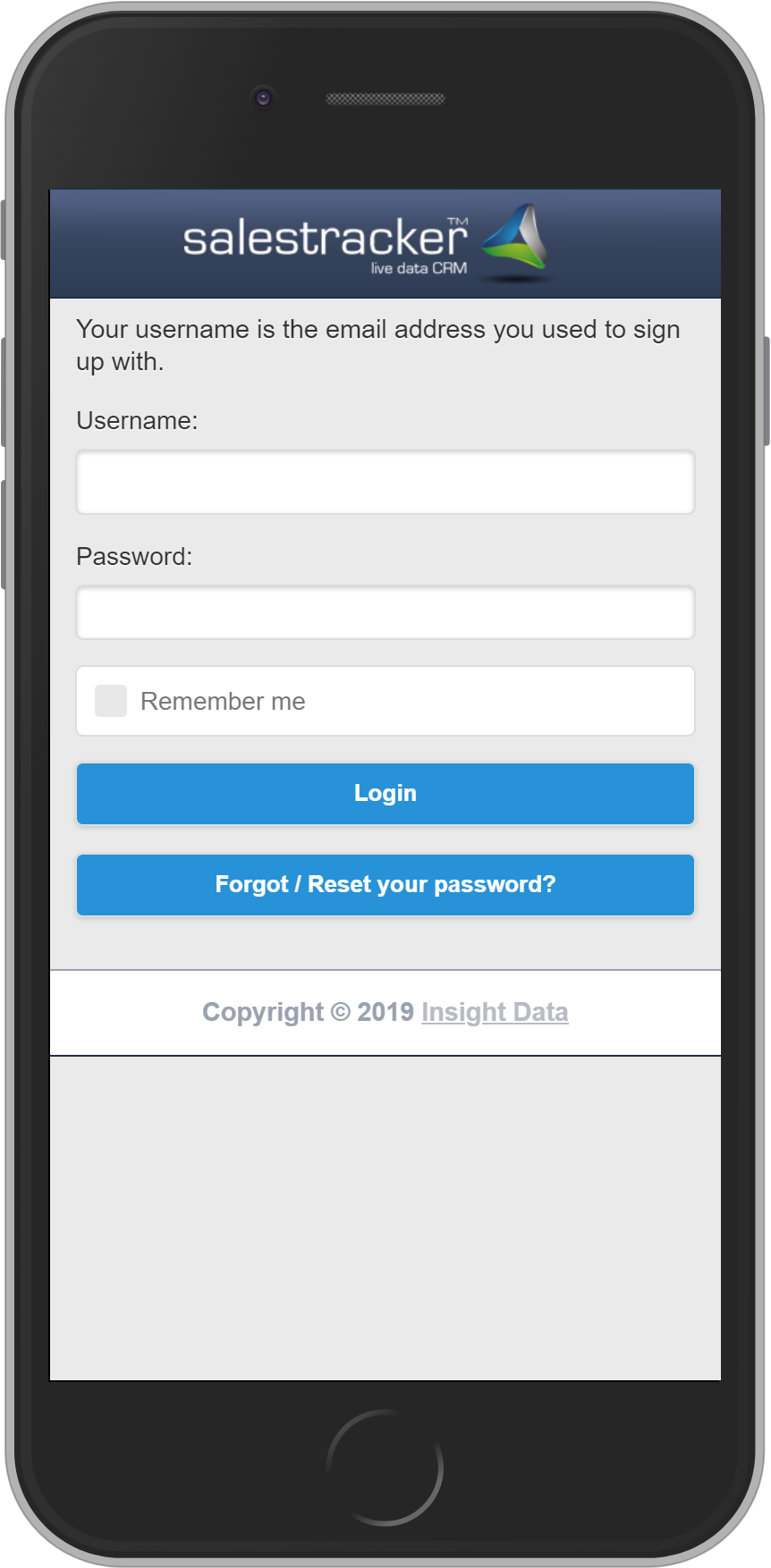
Using the Mobile Login Screen
The login process is identical to the desktop version. You’ll enter the same email and password. For more on login details, see our general login help article.
Tablet or iPad Users
If you open Salestracker on a tablet or iPad, you’ll also be shown the mobile version by default. This is ideal for quick access and responsive navigation.
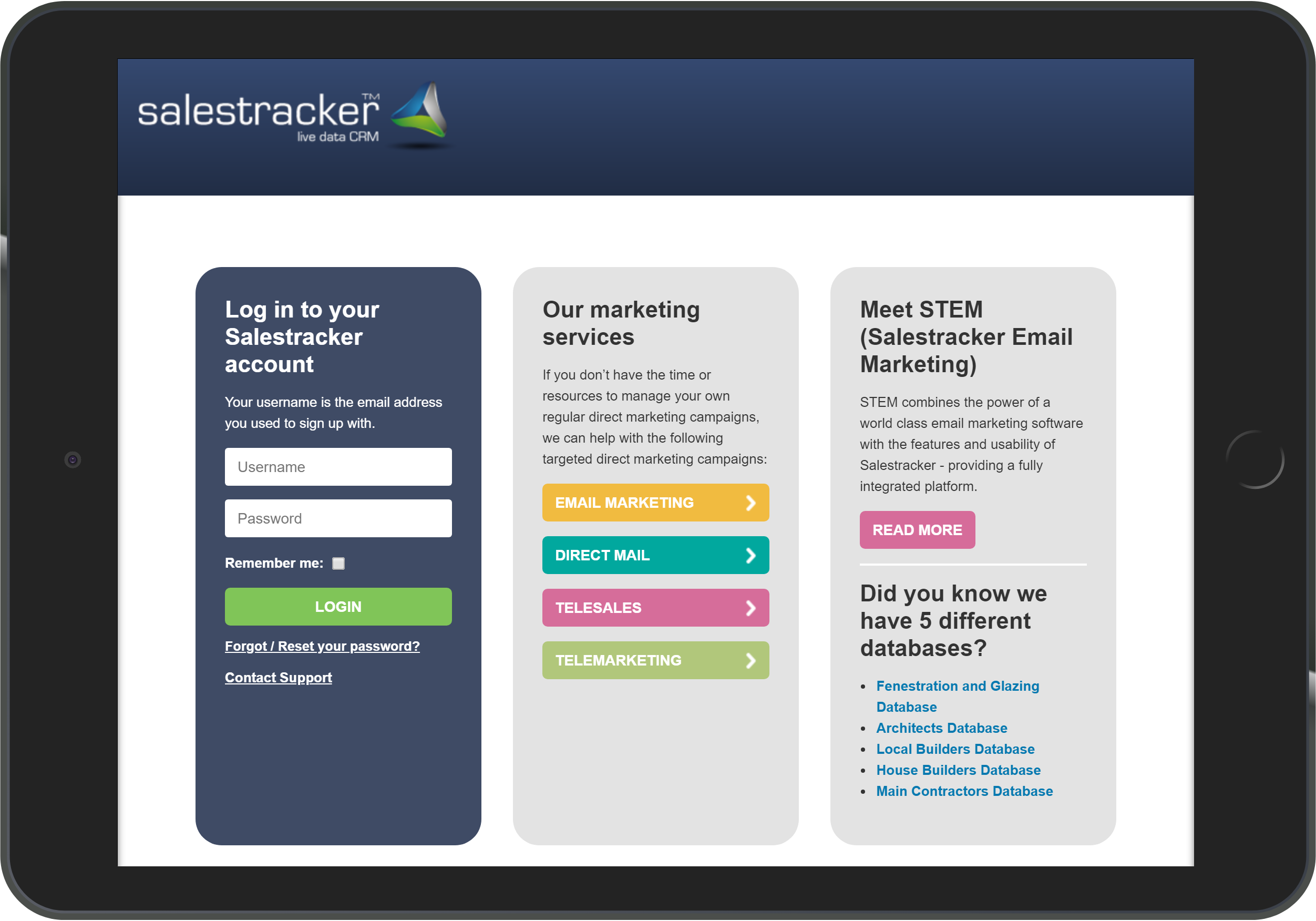
Want the Desktop Version on Tablet?
If you prefer the desktop view, most mobile browsers allow you to request it manually. This varies slightly between devices. Refer to your browser settings and look for “Request Desktop Site.”
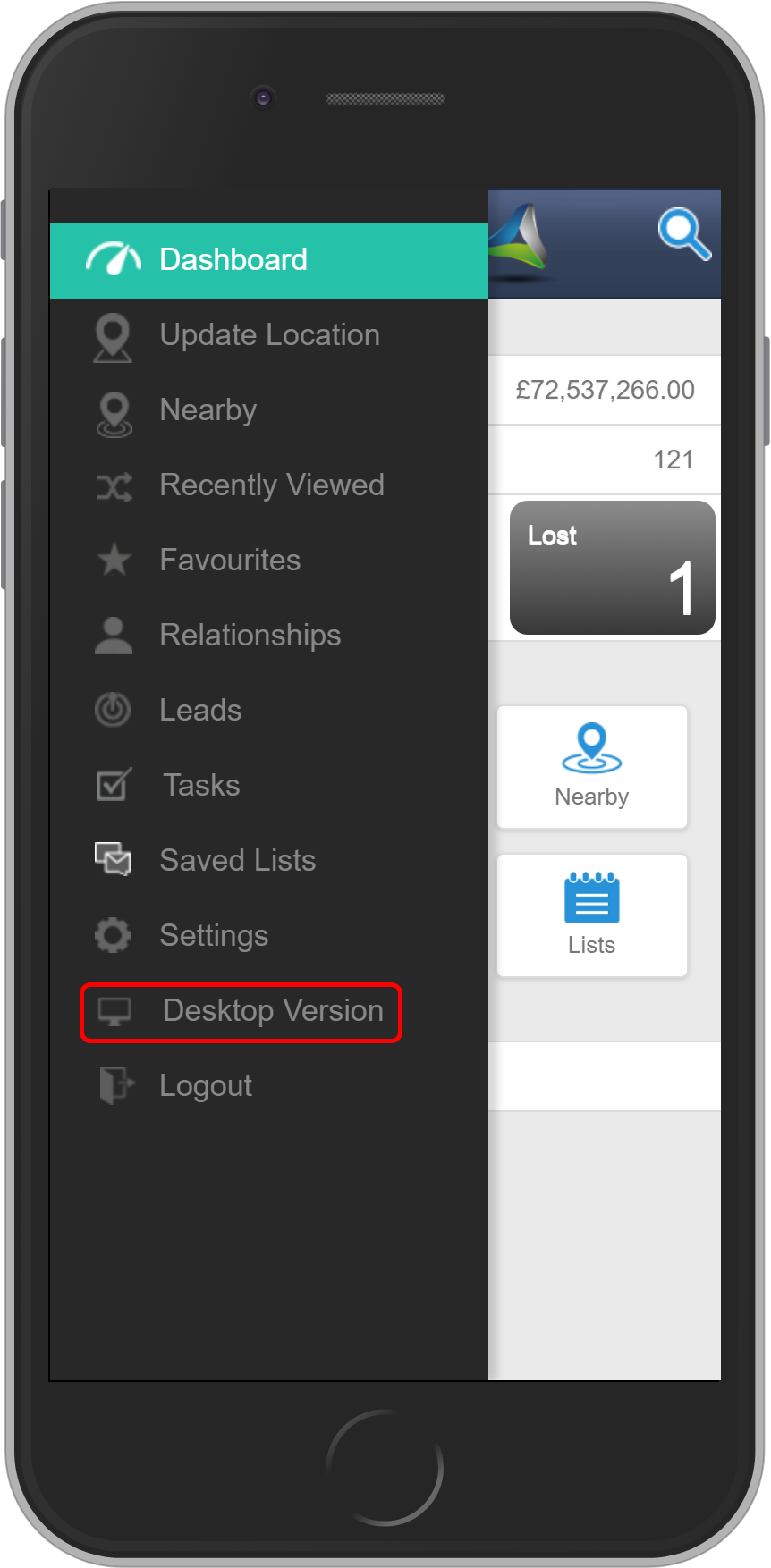
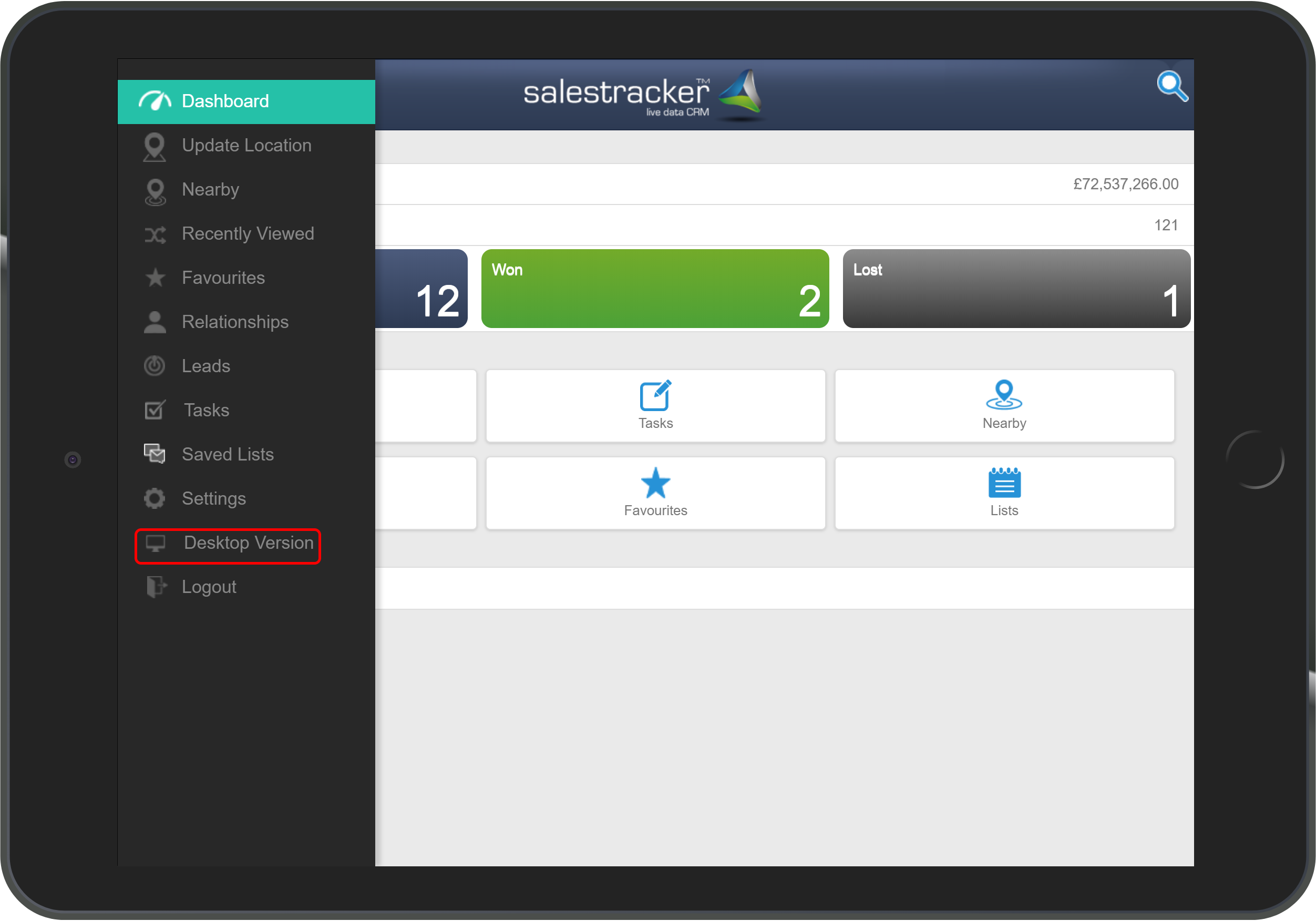
Switching Views After Login
Once logged in to Salestracker Mobile, you can also change to the desktop version by using the menu option at the top of the screen.
Need Help with Salestracker Mobile?
If you’re having trouble logging in or want to see how Salestracker Mobile can support your sales and marketing team, contact our support team or visit the Salestracker CRM page for product information.
Originally published on 15 October 2014 by Kirsty Winter.
Updated for 2025 by the Insight Data team.